System Diagnostics & The Self-Healing Tool
Deploying dynamic PHP applications on shared hosting environments or client servers can sometimes be unpredictable. Server updates, aggressive security plugins, automated backups, or even a simple server migration can unexpectedly alter file permissions (known as CHMOD or CHOWN issues). When a server suddenly revokes "write" permissions from a directory, your application loses the ability to log new orders or generate configuration files, silently breaking your checkout process.
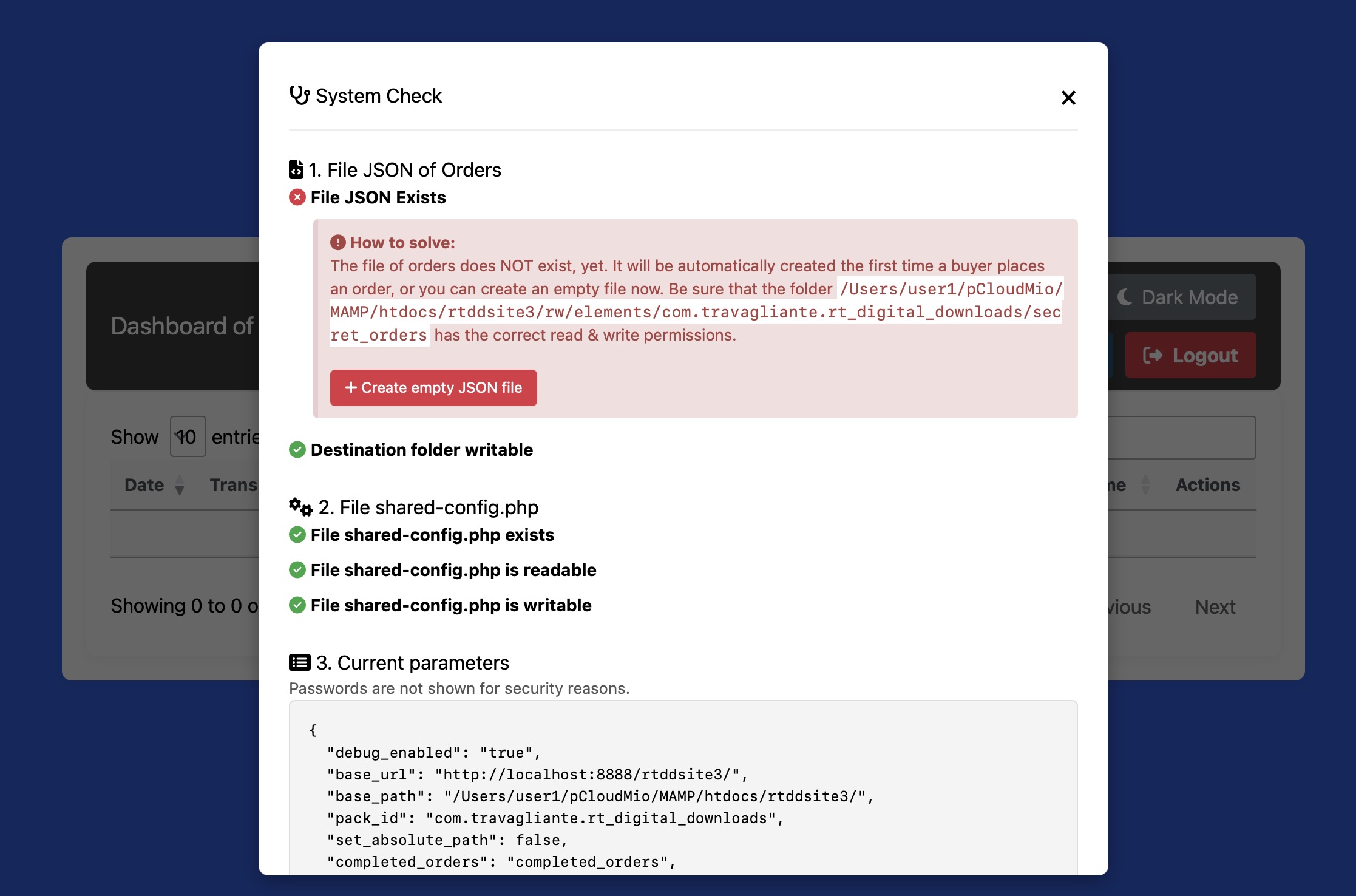
To prevent these headaches and eliminate the need for manual FTP troubleshooting, the Order Dashboard includes a built-in, automated diagnostic engine known as the System Check.
The Reality of Server Permissions
Unlike static HTML websites, a functional digital storefront must constantly interact with the server's file system. It needs to read data (to check prices), write data (to log new Stripe/PayPal orders), and create new files on the fly. If your web host applies a strict security patch that locks down your backend folder, the application will fail.
In these cases, you may encounter write errors on the server, such as the one shown in the following screenshot, where also clicking on "Create empty JSON file" does NOT solve the problem:
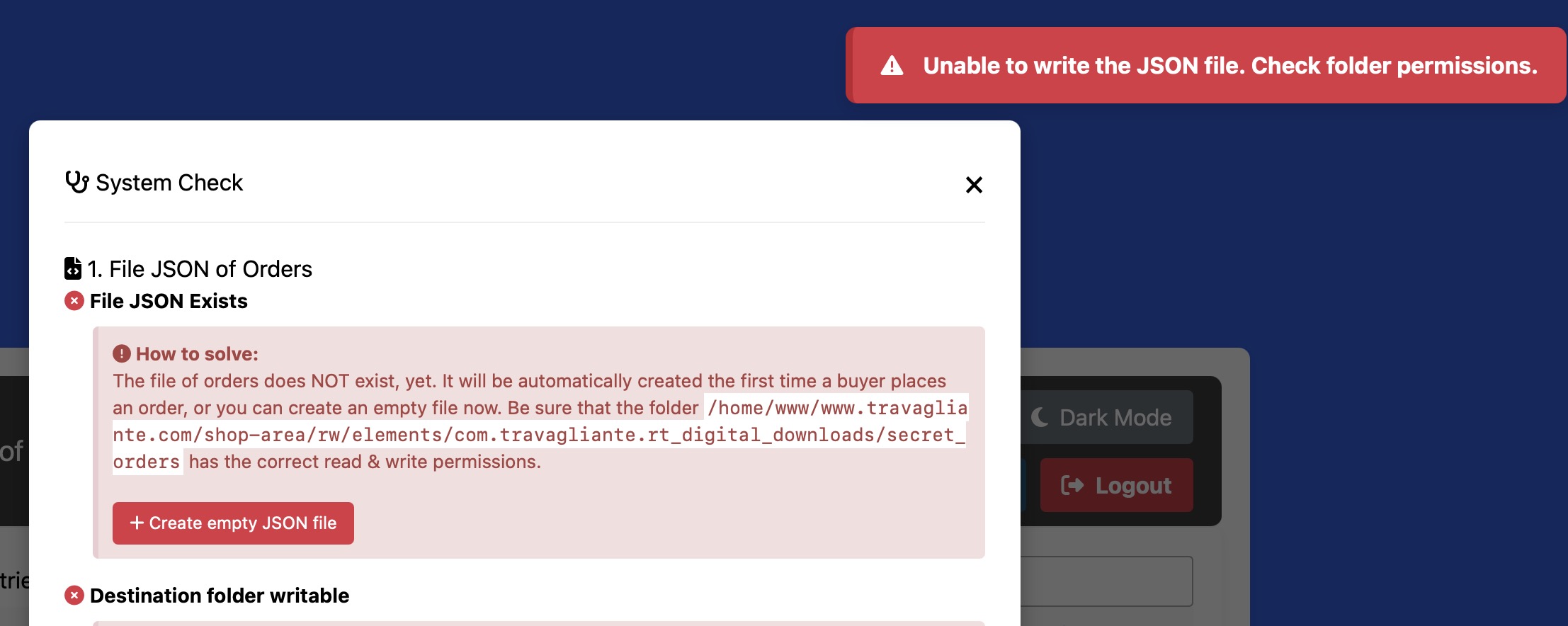
Traditionally, fixing this requires logging into an account of your hosting (for example, cPanel), navigating a file manager, and manually typing numeric permission codes (like 755 or 644), or changing the owner user of the folders matching the webserver user (like www-data). The RT Digital Downloads suite handles many of these problem for you directly from the visual dashboard. However, some problems related to permissions must be solved in traditional ways, externally to the RT Digital Downloads environment.
Just to make some examples:
-
Example no. 1: On a VPS running the Linux OS and Apache web server, RT Digital Downloads can't create the JSON file of orders.
Fix:
By using the SSH access, you could use the specific shell command to update the webserver user, after publishing by RapidWeaver Elements:
chown -R www-data:www-data /var/www/html/www.yourdomain.com/shop-area -
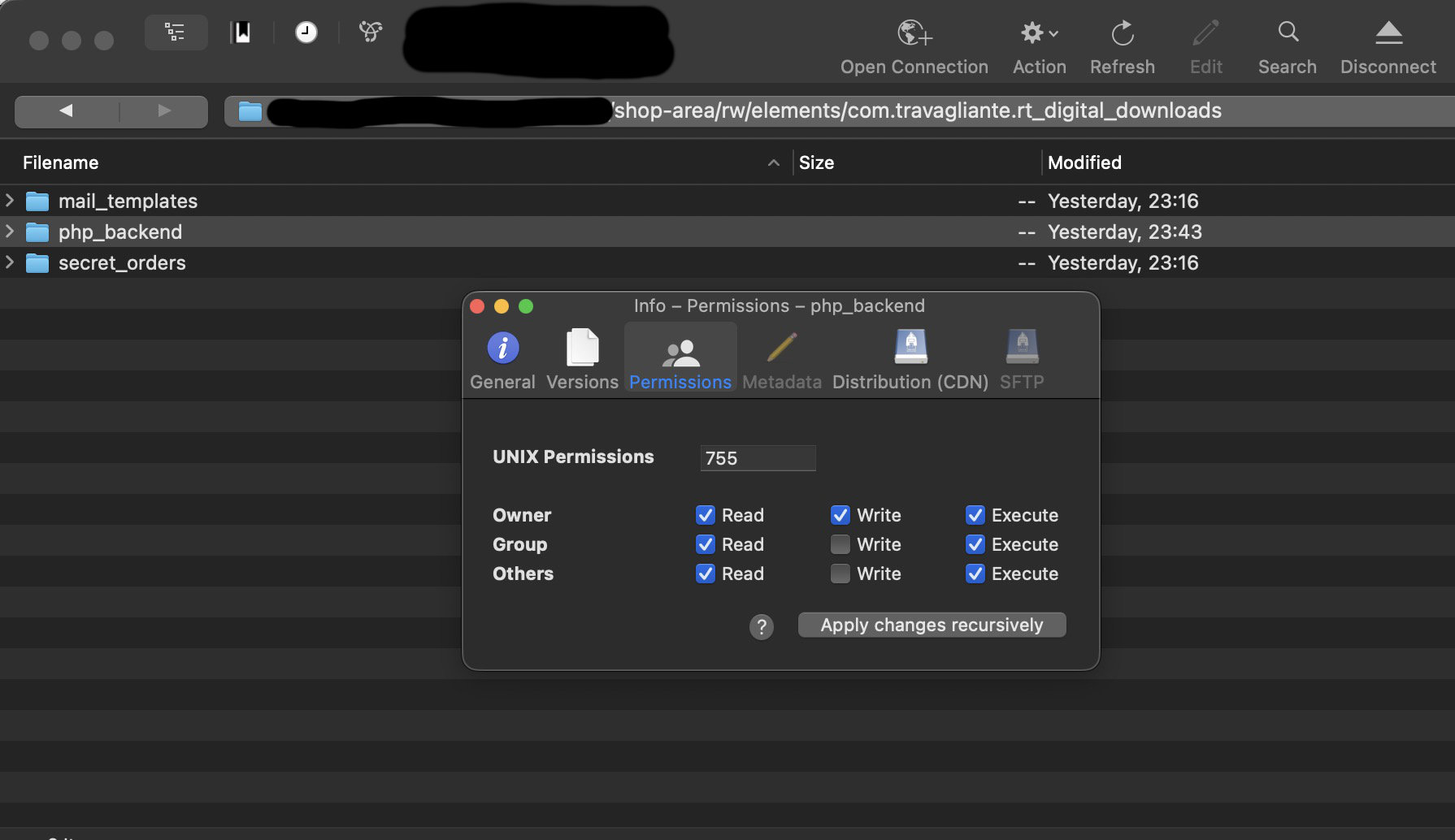
Example no. 2: On a hosting service, the order dashboard doesn't seem to correctly display any orders. When clicking the "System Check" button, it appears that the "shared-config.php" file doesn't exist. The folder that should contain it (php-backend) likely exists, but doesn't have the appropriate write permissions. To manage our web space, we only have SFTP (or FTP) access, or a control panel like cPanel.
Fix:
By using a SFTP/FTP client software, you could set the appropriate permissions to the folder, after publishing by RapidWeaver Elements:
How the Self-Healing Mechanics Work
When an Administrator logs into the Order Dashboard and navigates to the System Check interface, the application instantly executes a silent architectural audit. It runs a series of simulated read and write tests across your entire deployment structure.
Instead of presenting you with confusing PHP error codes, the dashboard translates the server's health into a simple, color-coded visual grid. If the system detects a missing log file, a permission blockade, or a desynchronized configuration state, it exposes One-Click Recovery Buttons. Clicking these buttons commands the PHP engine to forcefully auto-generate missing components or override folder permissions, healing the architecture instantly.
The Three-Pillar Diagnostic Audit
The framework continuously validates structural parameters across three primary infrastructural pillars:
- The JSON File of Orders: The system checks if your secret
completed_orders.jsonfile physically exists. If it does, it runs a test to ensure the server can both read the file (to display charts) and write to the file (to log new orders). If the file was accidentally deleted via FTP, the self-healing tool will instantly regenerate a clean, properly formatted JSON array ([]) and bind the correct read/write permissions to it, preventing the entire shop from crashing. - The Backend Parent Folder: The engine tests the directory where the backend PHP scripts live. It verifies if the script has the overarching authority to create new files inside this folder. The Fix: If the folder is locked (e.g., set to a strict Read-Only mode by the host), the tool will attempt to dynamically adjust the directory's CHMOD settings to restore operational write access, ensuring webhooks and IPN listeners can do their jobs.
- The Configuration file: This checks the integrity of the core configuration file that bridges the Buy Button, Download Button, and Dashboard (
shared-config.php). It verifies that the file isn't corrupted, hasn't been injected with stray whitespace, and perfectly matches your RapidWeaver Elements parameters. The Fix: If the file is desynchronized or missing, the tool prompts you to republish your RapidWeaver project to push a fresh, clean configuration schema to the server, instantly re-linking your ecosystem.
Best Practices for Administrators
It's highly recommended running the System Check utility in the following scenarios to guarantee zero downtime:
- Immediately after the first deployment: To ensure your host's default permissions allow the application to run.
- After moving the website: If you migrate the site from a staging domain to a live production domain, file ownership often changes.
- If a customer reports a missing download link: If a webhook fails to process, running a quick diagnostic will instantly tell you if a server permission change caused the interruption.
Troubleshooting Guide & Common Solutions
Even with automated diagnostics and careful configuration, server environments can sometimes behave unpredictably. This guide outlines the most common issues you or your customers might encounter, explaining the root causes and providing exact steps to resolve them.
JSON file of orders is unavailable
The Symptom: No orders appear in the orders dashboard. Clicking the "System Check" button reveals that the order JSON file either doesn't exist or can't be written to.
The Root Cause: The problem most likely stems from incorrect permissions assigned to the file or folder containing it. These permissions prevent the file from being written to.
- Click the "Generate" button in the "System Check" window.
-
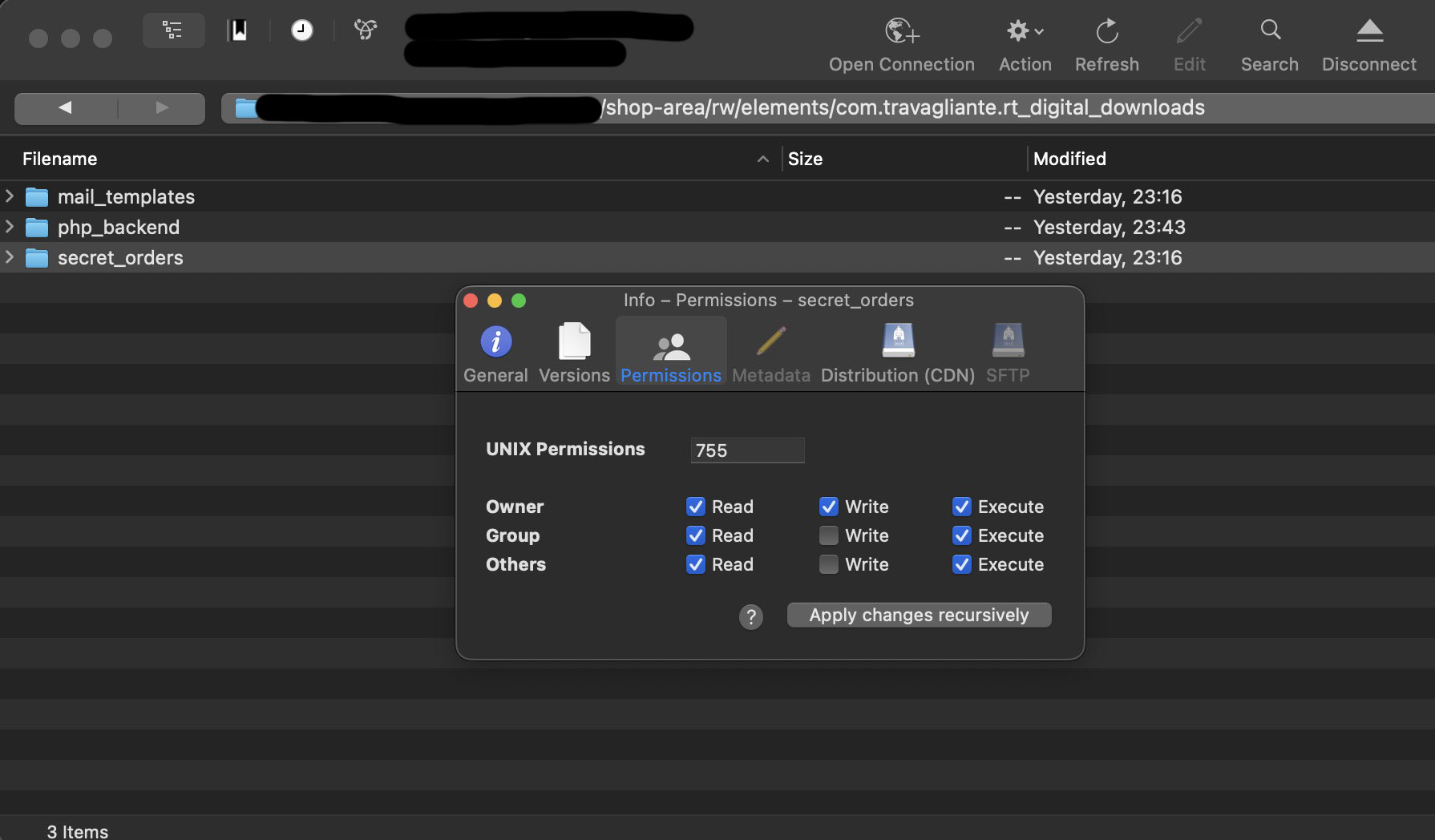
If the step above doesn't solve the problem, you'll need to adjust the permissions configured in your FTP/SFTP space, possibly using a shell, or a FTP/SFTP client software (as the image below). For example, in the case of a VPS with SSH access, you can change the owner or permissions, with some commands like:
chown -R www-data:www-data /var/www/html/www.yourdomain.com/shop-areachmod 755 /var/www/html/www.yourdomain.com/shop-area/rw/elements/com.travagliante.rtdigitaldownloads/secret_orders/
Download Button seems to be dead, it doesn't run
The Symptom: The Download Button doesn't seem to work. Also, when I click the "System Check" button in the order dashboard, it says the "php_backend" folder doesn't exist.
The Root Cause: The "php_backend" folder, which is essential for webhooks, IPN notifications, and downloads, was likely not published correctly.
-
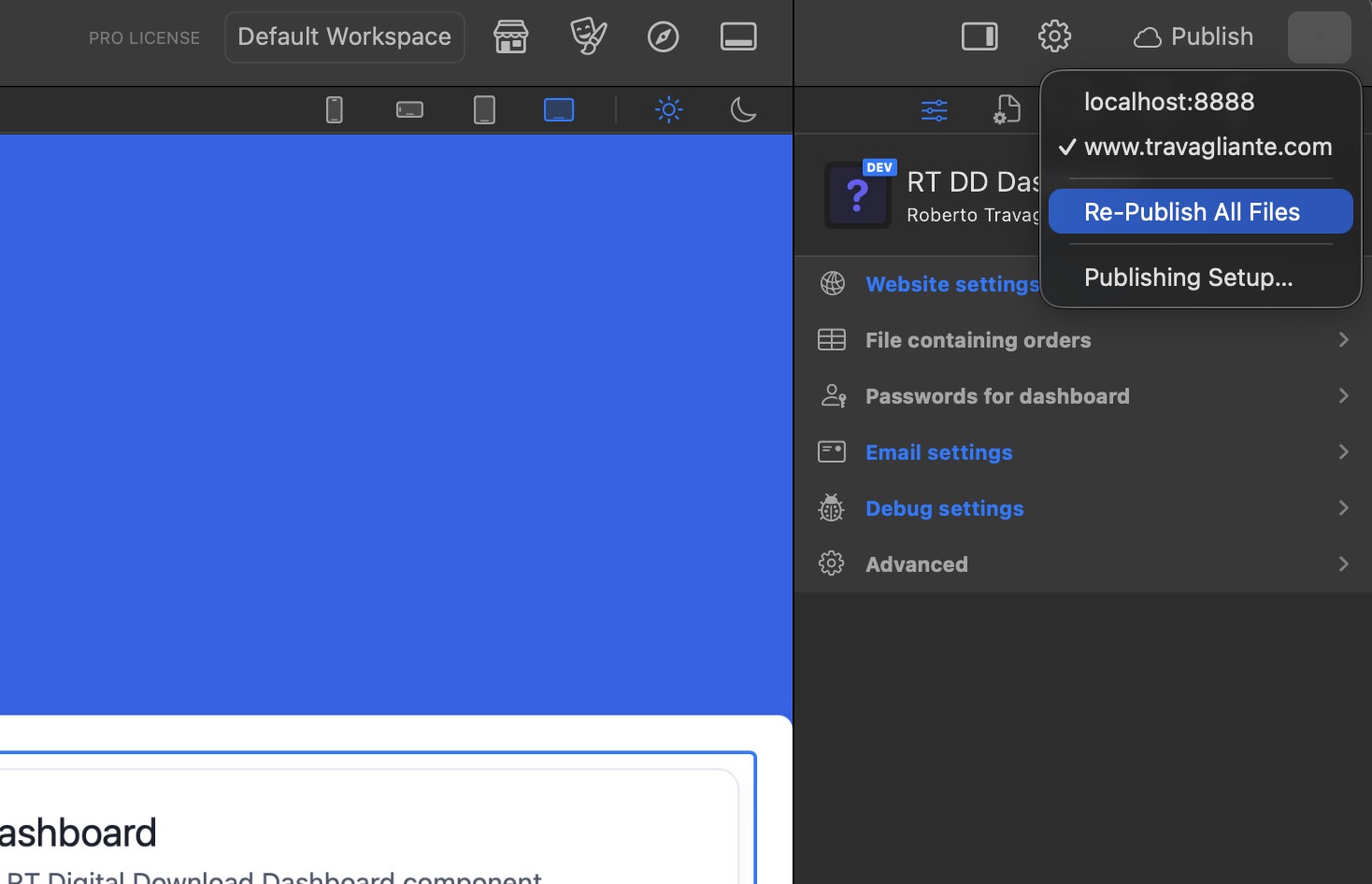
From the RapidWeaver Elements interface, choose the "Republish all files" option. This will publish the "php-backend" folder to your server. Then, click the "System Check" button again and, if necessary, grant the folder appropriate permissions.
Downloads are Corrupted, 0-Bytes, or Incomplete
The Symptom: The customer successfully completes a payment, but when they click the download link, the file (especially PDFs or ZIP archives) fails to open, reports as "corrupted," or downloads as a tiny file (e.g., 0 bytes or 1 KB).
The Root Cause: This is almost always caused by active Output Buffering on your server, or invisible text characters bleeding into the file stream. When PHP serves a secure file, the stream must be perfectly pure. If there is a stray space or a carriage return in your configuration files, the server injects that space into the binary code of your ZIP or PDF, instantly corrupting it.
- Check your auto-generated
shared_config.phpfile. Verify that the file you uploaded to the server matches the exact path specified in the Real file property. If the file is missing from the server, the system might be trying to download an empty response.
Polling Loops on the Success Page Always Time Out
The Symptom: The customer pays, is redirected to the Success Page, but the Download Button spins continuously for 36 seconds and eventually displays the timeout/error message. However, the payment was successfully captured in Stripe or PayPal.
The Root Cause: This indicates a "broken bridge" between the payment processor and your webhook listener. Stripe or PayPal tried to send the IPN/Webhook to your server, but your server rejected the connection or couldn't be found.
- Double-check the Webhook/IPN URL you pasted into the Stripe/PayPal dashboard. A single typo (e.g., http:// instead of https://) will cause a total failure.
- Check Firewalls, because if you are using Cloudflare, Wordfence, or an aggressive server firewall (ModSecurity), it might be actively blocking Stripe or PayPal's automated POST requests, thinking they are bot attacks. You must whitelist Stripe and PayPal IP addresses in your firewall settings.
- Ensure also your website is not behind a "Coming Soon" or password-protected directory (.htaccess). Webhooks cannot bypass standard browser password prompts.
Customers Are Not Receiving Confirmation Emails
The Symptom: The payment processes perfectly, the download button works, and the order appears in the dashboard, but the automated email containing the backup link never arrives in the customer's inbox (or goes straight to spam).
The Root Cause: Email delivery relies heavily on server reputation. Using the native PHP mail() function often results in emails being flagged as spam because they originate from a shared web server rather than an authenticated mail server.
- Switch your Mail Method in the Elements Inspector from PHP mail() to PHPMailer.
- Enter valid SMTP credentials (Host, Port, Username, Password) from a trusted provider (like Google Workspace, Amazon SES, or your premium web host).
- Verify the Port and Security Protocol: If you select port 587, ensure Security is set to TLS. If you select port 465, ensure Security is set to SSL.
- Turn on Enable Debug in the dashboard settings and execute a test order. The system error log will capture the exact SMTP rejection reason (e.g., "Authentication failed").
Locked Out of the Order Dashboard
The Symptom: You attempt to log into your backend Order Dashboard, but your passwords are rejected, leaving you completely locked out of your sales data.
The Root Cause: You likely forgot the password, or a typo was accidentally introduced into the password fields within the RapidWeaver Elements Inspector before publishing.
- You cannot recover the password from the web interface for security reasons.
- Open your RapidWeaver project and navigate to the Order Dashboard component.
- Simply type a new, easily remembered password into the Admin password and Read only pass fields.
- Republish the project to your server. The system will automatically overwrite the
shared_config.phpfile with your new credentials, granting you immediate access.
The Checkout Form Fails to Load or Shows Network Errors
The Symptom: When navigating to the page containing the Buy Button, the price fails to load, or the console shows a "Failed to Fetch" or "CORS (Cross-Origin Resource Sharing)" error.
The Root Cause: Your Base URL setting does not perfectly match the domain the customer is visiting. For example, your Base URL might be set to http://yourwebsite.com/, but the user is browsing securely via https://www.yourwebsite.com/. Browsers strictly block scripts from communicating across mismatched domains (HTTP vs HTTPS, or WWW vs non-WWW).
- Review the URL exactly as it appears in your live browser's address bar.
- Copy that exact domain structure (including https:// and www if applicable) into the Base URL property in your RapidWeaver Elements Inspector.
- Republish your site. Configure your web host to force an HTTPS redirect so all traffic consistently uses the exact secure path.